

Learning R programing, my first knowledge sharing for programing language! Do you like data science? Then, you will love to learn R programing. I will have multiple posts to let you to learn basic understanding and hopefully to lead to learn more.
We are going to start with introduction and installation requirements to start R programing. I will be also giving explanation what is variables in R programing. On my next post, we will look into creating basic graphics. Let`s start!
What is R programming?
R is a programming language and very popular for statistical data analysis and visual analytical presentation of graphics. It is a free and open source program, which is the world’s most widely used programming language for data science and used by many scientists.
To start R coding you need a text editor, we will be using R & RStudio for writing codes. I will be giving information on how to install the required text editors in the following sections.
R programing requires a specific file extension to be used, which is *.R. Writing script is case sensitive but not space sensitive. I highlighted some of the features of R programming below, so you can see reasons to use it for data science.
Features of R programing
- It is easy to learn for beginners
- It does not require any prior knowledge on programming
- Full of functions and features that give extensive capability to solve problems
- It had advanced library to build graphs with a simple functions
- It has multiple statistical techniques
- It works with Windows, Mac & Linux
- There are multiple free packages available to add to R that can help you to do anything with data
Installing R & RStudio
Setting up R
First you will need to install R. To do this, you need to go to home page of R product by clicking the following link;
This will take you to the “The Comprehensive R Archive Network” page.
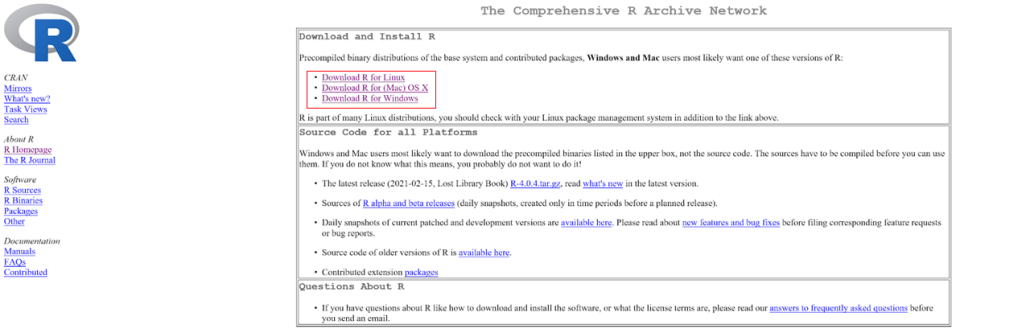
Figure 1- The Comprehensive R Archive Network window
Click on your computer operating system (Linux, Mac or Windows), download and install it by following the standard guided instructions.

Figure 2- Mac installer page, click in “R-4.0.4.pkg”

Figure 3- Windows installer page, click on “base”
After completing your installation, you will see the following R console when you open.

Figure 4- R Console
Next, we will install RStudio. You might ask why, I already have R, do I still need RStudio? Answer is yes. R is the basic package and allows you to use a console for code writing but it might not be easy. RStudio is an add-on for an easier user interface that you will see, it will help a lot.
Setting up RStudio
R studio is a software that you can download in addition to R to make working with R easier. The followings are the some of the features of RStudio;
- It has consistence keyboard commands for all operators (Mac, Windows or Linux)
- It has one window all the information in organised way
- It is easy to navigate keyboard and manage the information in R
To install RStudio, click on the following link to go to the download page;
https://rstudio.com/products/rstudio/download/#download

Figure 5- RStudio installation page
Select on your operating system installer, download and follow up guided instructions to install it. You will see the following window with multiple panes when you open it.

Figure 6- RStudio window with console, global environment and others panes
Console is for text output. Global environment for saving variables if you are using any. The plots and the other information will appear in the other pane.
You can use R programming like a calculator and do more by utilizing the variables and functions. We will learn more about those in the coming posts.
To start writing your codes (variables, functions, operations, etc.), first you need to open a script window in RStudio.
Go to File/New File/R Script. It will open a window that you can see on the top left.

Figure 7- RStudio script pane on the top left
Let`s do simple math and get text outputs with some comments in R.
Text: use single or double quotes to output text
Numbers: type just numbers
Simple math calculations: write number together with simple operations
Comments: It is used to explain R code or prevent execution of code. Comments start with a “#”.
Go to Edit and click on Clear Console. This will delete defaults write ups that we have in console pane.
We will type codes in the script pane and see the outputs in the console pane.
Start typing following in your script pane, top left.
“this is my first time R programing”
#I will do a simple math calculations
2
4
2+4
2-4
2*4
2/4
# I love it
Highlight one (if you want to execute only one operation) or all of them and click on the “Run” button on the script pane top right or use “Ctrl Enter” buttons on your keyboard to execute and get output in the console pane just below the script pane.

Figure 8- Simple math input and output in R
Congratulations ! You had your first R coding.
Install and load “Packages”
Packages are bundles that help to add functions to R so you can do more things. There are two kinds of packages; base & third party packages.
Base packages; They are installed with R, but not loaded by default.
Third party packages; They need to be downloaded, installed and loaded separately.
There are few choices that you can get those packages. I will go through how to see them through CRAN.
CRAN stands for Comprehensive R Archive Network. You can reach it out through R website- https://cran.r-project.org/
Click on Packages on the left side list. Again click on Task Views, which breaks down by topics.
These are some packages that has mostly used by people;
dplyr: manipulating data frames
tidyr: cleaning up information
stringr: working with strings and test information
lubridate: manipulating date information
httr: working with website data
ggvis: graphic and grammar interactive visualization
ggplot2: creating graphics and data visualization
rio: importing and exporting data
plotrix : 3D charts
To install a new package from CRAN, you need to use following code with the package name;
install.packages(“package name”)
To load the installed package to the Library, you need to use the following code, so it will be loaded into your R environment.
Library (package name)
If you are not sure how to use any of the functions or code, you can go to help with two options.
Example:
?library
Or
help(“library”)
Type one of it and click on the “Run” button or use “Ctrl ENTER”. You will see the explanation on the right bottom pane.

Following shows zoom in – script pane

Figure 9- installing, loading packages and going to help
Variables in R
Variables are named storages that we can change, manipulate and store the data values. When you store the variables, they will allocate the memory.
To save your operation, you could write your variable by using “=” or “<-”. R programming prefers to use “<-” due to some of the operators being forbidden in some of the R content.
Naming variables
You can give a name to a variable as a single letter or descriptive words, however there are certain rules if you want to combine numbers or characters with letters or words. The following is summarising the rule of R variable naming;
- A variable name must start with a letter and can be a combination of letters, digits, period “.” and underscore”_”. If it starts with period”.”, it cannot be followed by a digit.
- A variable name cannot start with a number or underscore “_”
- Names are case-sensitive
- Reserved words cannot be used as variables (TRUE, FALSE, NULL, if…)
Functions to print & combine the output
In R programming, you do not use any function to print the output. If you just type the name of the variable, it will be printed. However, print () function is still available and might be required in some of the operations, such as loops.
There is another function, which is called paste() if you want to join more than one element in the output.
I put few examples together and you can see them in the following R window. Remember, after you type the variables and functions in the script window, you need to highlight them and click on the “Run” button or use your keyboard by clicking “Ctrl ENTER”.

Figure 10- Examples for variables, all panes in RStudio window

Figure 11- Examples for variables, zoom in – RStudio script

Figure 12- Examples for variables, zoom in – RStudio console
Please set up the R&RStudio in your computer. In the coming posts, we will start learning about, graphics, statistics, how to utilize different source of data and model with data science.
 123 CODING WITH ME